In today’s digital age, understanding PC hardware components is essential for anyone looking to build or upgrade their computer. From gaming enthusiasts to professionals, knowing how each part works can make a significant difference in performance and efficiency.
Every component, from the CPU to the GPU, plays a vital role in how a system operates. These elements work together to deliver speed, power, and reliability. With technology constantly evolving, staying informed about the latest advancements ensures users can make the best choices for their specific needs. Whether you’re a novice or a seasoned builder, diving into the world of PC hardware reveals the intricate details that can enhance any computing experience.
Overview of PC Hardware Components
PC hardware components form the foundation of a computer system, influencing performance, speed, and capabilities. Key components include:
- Central Processing Unit (CPU): Often referred to as the brain of the computer, the CPU executes instructions and processes data. It affects overall system speed and performance. Options include AMD Ryzen and Intel Core processors.
- Graphics Processing Unit (GPU): This component renders images and videos, crucial for gaming and graphic design. High-performance GPUs, such as NVIDIA GeForce and AMD Radeon, enhance visual fidelity and rendering speed.
- Motherboard: The motherboard connects all components, allowing communication between them. It houses the CPU, RAM, and expansion slots. Compatibility with CPU and RAM types is essential.
- Random Access Memory (RAM): RAM temporarily stores data for quick access, impacting multitasking capabilities and load times. Common RAM capacities range from 8GB to 64GB.
- Storage Drives: Storage solutions include Hard Disk Drives (HDD) and Solid State Drives (SSD). SSDs provide faster data access speeds compared to HDDs. Typical capacities range from 256GB to 2TB.
- Power Supply Unit (PSU): The PSU converts electrical power and distributes it to components. It’s vital to select a PSU with adequate wattage to support all hardware.
- Cooling System: Essential for maintaining optimal temperature, cooling systems include air coolers and liquid cooling solutions. Effective cooling prolongs component lifespan and performance.
Understanding these components and their functions enables more informed decisions in building or upgrading a PC, ensuring a balanced and powerful system tailored to user needs.
Central Processing Unit (CPU)
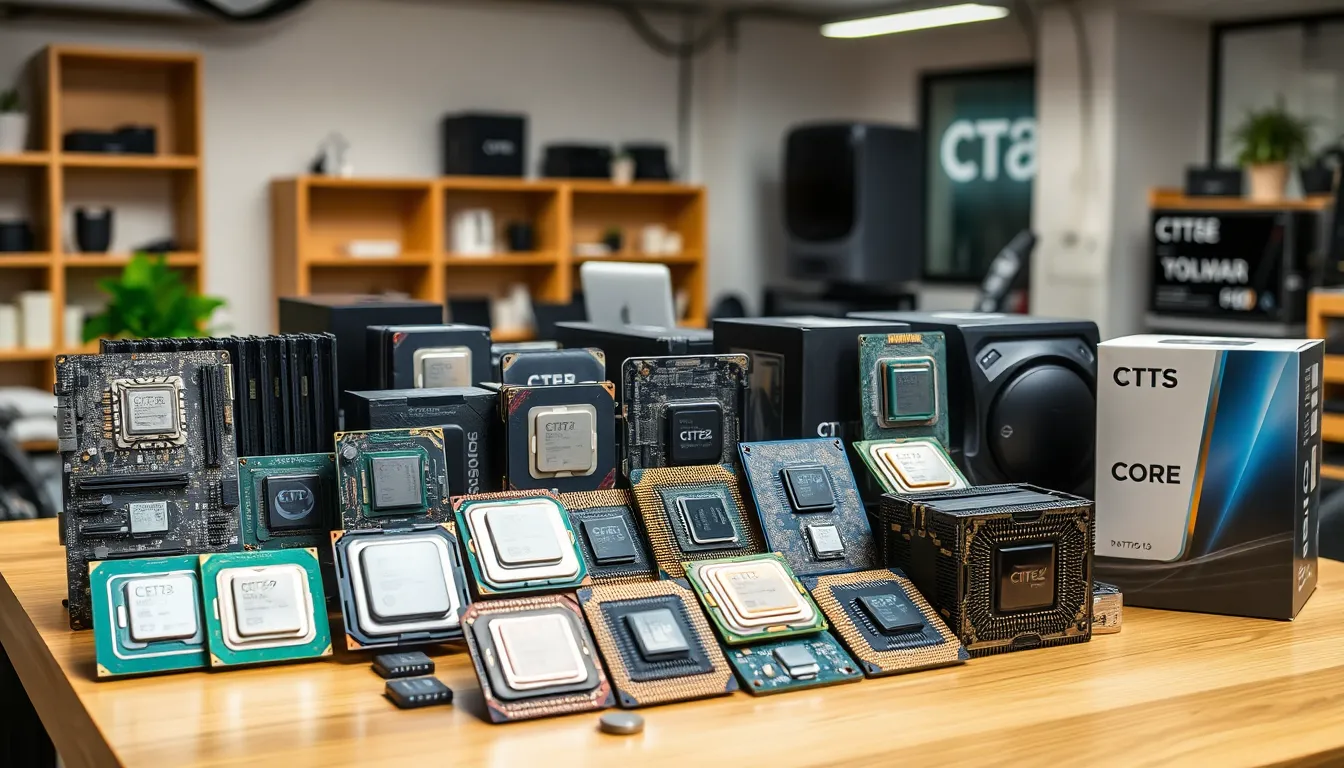
The Central Processing Unit (CPU) serves as the core component of a computer system, performing calculations and executing instructions that drive all operations. Understanding its various types and performance metrics enhances the choice of an appropriate CPU for specific computing needs.
Types of CPUs
- Desktop CPUs provide a balance of performance and efficiency for everyday tasks and gaming.
- Mobile CPUs target laptops and mobile devices, prioritizing energy efficiency to extend battery life.
- Server CPUs support data centers and cloud computing, designed for multitasking and reliability under heavy loads.
- Embedded CPUs are integrated into devices like appliances and industrial machines, optimized for specific functions.
- High-Performance CPUs cater to gaming and content creation, offering multiple cores and high clock speeds for demanding applications.
Performance Metrics
- Clock Speed determines how many cycles per second the CPU can execute, measured in gigahertz (GHz).
- Core Count indicates the number of processors within a CPU, allowing for parallel processing of tasks.
- Cache Size influences the speed at which data is accessed; larger caches can lead to better performance, with levels usually categorized as L1, L2, and L3.
- Thermal Design Power (TDP) denotes the maximum heat generated, influencing cooling solutions and system design.
- Benchmarks provide standardized performance evaluations across different CPUs, aiding in comparison for specific applications and use cases.
These elements collectively define a CPU’s capability to handle various workloads, ensuring users select a component that meets their performance requirements.
Graphics Processing Unit (GPU)
The Graphics Processing Unit (GPU) is crucial for rendering graphics and processing images, videos, and animations. Its performance significantly impacts gaming, design, and video content creation.
Integrated vs. Dedicated GPUs
- Integrated GPUs offer basic graphics capabilities and share resources with the CPU. They suit casual tasks like web browsing and office applications.
- Dedicated GPUs feature their own memory and processing power, providing superior performance for gaming and graphics-intensive applications. They enhance frame rates and graphical fidelity.
- Use cases for Integrated GPUs include general computing, basic gaming, and lightweight graphic design tasks.
- Use cases for Dedicated GPUs encompass high-end gaming, 3D rendering, video editing, and machine learning applications.
GPU Compatibility
- Motherboard compatibility is essential; a PCI Express slot is required for most dedicated GPUs.
- Power supply compatibility demands sufficient wattage and the right connectors for efficient GPU operation.
- Case size compatibility entails ensuring the graphics card fits within the computer case.
- Cooling solutions must accommodate the GPU’s thermal requirements, especially for higher-end models.
- Driver compatibility involves utilizing the latest software to maximize GPU performance across applications.
Understanding these aspects ensures users select the appropriate GPU to enhance their system’s capabilities effectively.
Motherboard
The motherboard serves as the central hub for all PC hardware components, facilitating communication between the CPU, GPU, RAM, and storage drives. Selecting the appropriate motherboard is vital for building a well-functioning system.
Choosing the Right Motherboard
Choosing the right motherboard involves considering several factors. Compatibility with the CPU socket type is crucial; users must match the motherboard with the processor model. Form factor impacts the size and layout, affecting case compatibility. ATX, Micro-ATX, and Mini-ITX are common form factors, with ATX offering more expansion slots. Additional features, like onboard Wi-Fi and Bluetooth, can enhance connectivity.
Key Features to Consider
Several key features influence motherboard selection:
- Chipset: Determines the available features and functionalities. Popular chipsets include Intel’s Z, H, and B series and AMD’s X and B series.
- RAM Slots: Number of slots and maximum supported RAM capacity affect multitasking capabilities. Dual-channel configurations typically enhance performance.
- Expansion Slots: PCIe slots allow installation of additional cards. More slots provide flexibility for upgrades like dedicated GPUs and sound cards.
- Storage Options: SATA and M.2 connectors enable various storage drive types. M.2 slots support NVMe SSDs for faster data access.
- I/O Ports: Considering USB ports, HDMI, audio outputs, and Ethernet ensures sufficient connectivity for peripherals and displays.
- Power Phase Design: A robust power delivery system supports stable CPU performance, especially during overclocking.
These features collectively determine how well the motherboard integrates with other components and affects overall system performance.
Memory (RAM)
Random Access Memory (RAM) significantly influences a computer’s multitasking capabilities and overall performance. Understanding RAM’s types, speeds, and capacity is essential for effective system builds or upgrades.
RAM Types and Speed
Different RAM types serve various performance needs. Common types include:
- DDR3: Provides good performance, suitable for older systems, with speeds typically ranging from 800 MHz to 2133 MHz.
- DDR4: Offers enhanced speeds from 2133 MHz to 3200 MHz, prevalent in modern systems, increasing bandwidth and efficiency.
- DDR5: Represents the latest standard, providing speeds exceeding 4800 MHz, designed for high-performance applications and future-ready systems.
RAM speed, measured in MHz, affects how quickly data transfers occur between the RAM and the CPU. Higher speeds enhance overall responsiveness, particularly in applications requiring quick access to large data sets, like gaming and content creation.
Importance of Capacity
RAM capacity directly impacts a system’s ability to handle multiple tasks simultaneously. Common capacities include:
- 8 GB: Adequate for basic tasks such as web browsing, office applications, and light gaming.
- 16 GB: Suitable for more demanding tasks, including moderate gaming, video editing, and running virtual machines.
- 32 GB and beyond: Beneficial for professional-grade video editing, 3D rendering, and extensive multitasking scenarios.
Choosing the right RAM capacity ensures smooth performance during resource-intensive operations. It’s critical to match capacity with expected usage patterns to achieve optimal system efficiency.
Storage Solutions
Storage solutions play a vital role in determining a PC’s performance and data access speeds. Two prominent types of storage drives, hard disk drives (HDDs) and solid-state drives (SSDs), significantly impact overall system efficiency.
HDD vs. SSD
- HDD Capacity: HDDs typically offer larger storage capacity, ranging from 500 GB to 10 TB, making them suitable for users needing extensive data storage, such as video editing and gaming.
- HDD Speed: HDDs operate at slower read/write speeds, usually around 80-160 MB/s, which can hinder system performance when accessing files frequently.
- SSD Speed: SSDs, in contrast, provide faster read/write speeds ranging from 200 MB/s to over 7,000 MB/s for high-end models, enhancing overall system responsiveness and loading times.
- SSD Durability: SSDs lack moving parts, resulting in increased durability and resistance to physical shock compared to HDDs, which use spinning disks.
- Heat Generation: HDDs generate more heat due to their mechanical components, while SSDs produce less heat, promoting energy efficiency and prolonged component life.
- Price Consideration: HDDs generally cost less per GB than SSDs, making them a budget-friendly option for larger storage needs.
NVMe and SATA Explained
- SATA Interface: SATA (Serial Advanced Technology Attachment) drives are the traditional interface for connecting SSDs and HDDs to the motherboard, with speeds capped around 600 MB/s for SATA III drives.
- NVMe Interface: NVMe (Non-Volatile Memory Express) is a newer interface designed specifically for SSDs, allowing for significantly faster data transfer rates due to direct communication with the CPU via the PCIe (Peripheral Component Interconnect Express) bus.
- NVMe Speed: NVMe drives can exceed speeds of 3,500 MB/s, making them ideal for demanding applications like gaming, 3D rendering, and large file transfers.
- Longevity and Wear Leveling: NVMe SSDs often incorporate advanced wear leveling algorithms that enhance drive longevity by distributing data evenly across the memory chips.
- Cost Differences: Although NVMe drives deliver superior performance, they usually come at a higher cost than SATA SSDs, impacting budget considerations for consumers.
Understanding these storage solutions and their differences helps users make informed choices based on performance needs, capacity requirements, and budget constraints.
Power Supply Unit (PSU)
The Power Supply Unit (PSU) distributes electrical power to all components inside a PC. Understanding wattage requirements and efficiency ratings plays a significant role in selecting the right PSU for optimal performance.
Wattage Requirements
Wattage requirements indicate the amount of power a PSU can deliver to the system. Each PC component has a specific power draw, and summing these values helps in determining the total wattage needed. For example, a system utilizing an Intel Core i7 CPU and an NVIDIA GeForce RTX 3080 GPU typically requires a PSU rated between 750 watts to 850 watts. It’s wise to choose a PSU with some headroom, about 20% above the calculated requirement, to account for future upgrades and ensure reliability under heavy loads.
Efficiency Ratings
Efficiency ratings measure how effectively a PSU converts AC power from the outlet into usable DC power for computer components. PSUs typically receive efficiency certifications such as 80 PLUS Bronze, Silver, Gold, Platinum, and Titanium. For instance, an 80 PLUS Gold certified PSU achieves up to 90% efficiency at 50% load, reducing energy waste and heat generation. Selecting a PSU with higher efficiency ratings offers long-term savings on energy costs and contributes to improved system stability and longevity.
Understanding PC hardware components is essential for anyone looking to build or upgrade a computer. Each part plays a vital role in the overall performance and efficiency of the system. By grasping the functions and compatibility of components like the CPU, GPU, RAM, and storage solutions, users can make informed decisions that enhance their computing experience.
Staying updated on technological advancements ensures that both novices and experienced builders can create a balanced system tailored to their specific needs. This knowledge not only improves performance but also contributes to long-term satisfaction with the user’s setup. Ultimately, a well-informed approach to selecting PC hardware can lead to a powerful and efficient computing environment.